How to Use the Admin Portal
The Admin Portal is where club admins set up teams, players, users, scoring rules and tips.
Overview
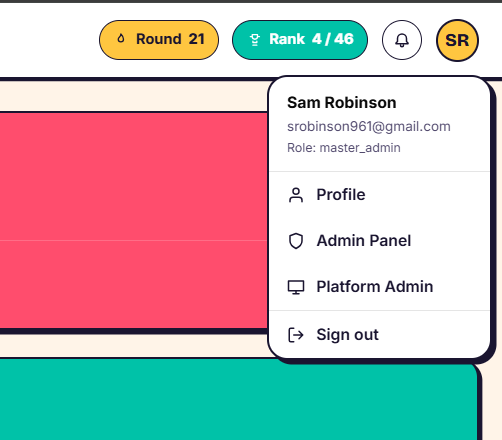
Admin access is granted by the master admin. Once you have it, you'll find the Admin Portal in the top right of the app. From there you can create teams, add players, invite users, set the rules your league plays by, post tips, and manage matches and game weeks.
Add your teams
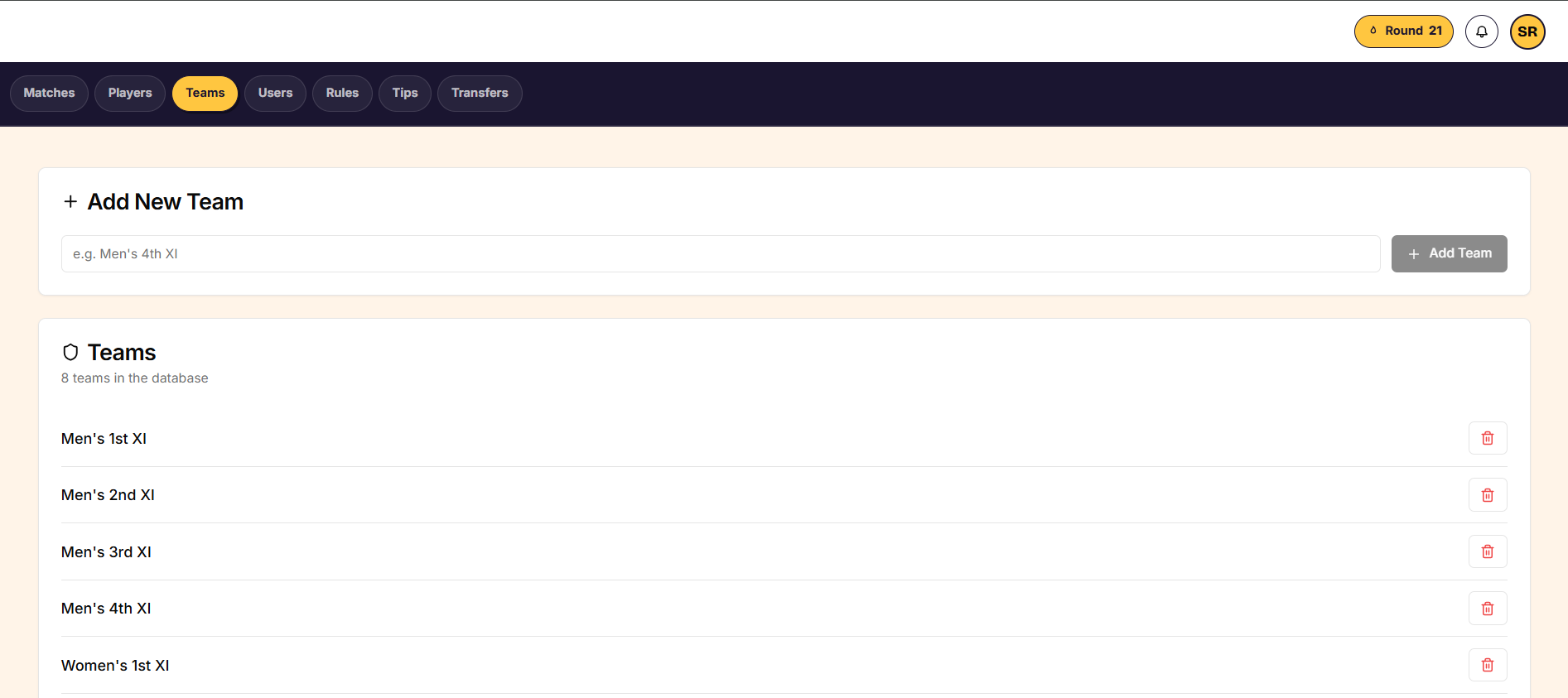
- Open the Admin Portal and go to the Teams tab.
- Add a team and give it a name, for example "Women's Third XI".
- Repeat for each team in your club.
Teams can be named however you like.
Add players
Your fantasy captains pick their squads from the players you add here. You can add players one at a time or upload them in bulk.
Adding a player manually:
- Go to the Players tab.
- Choose a team, position and gender.
- Add the player.
Adding players in bulk:
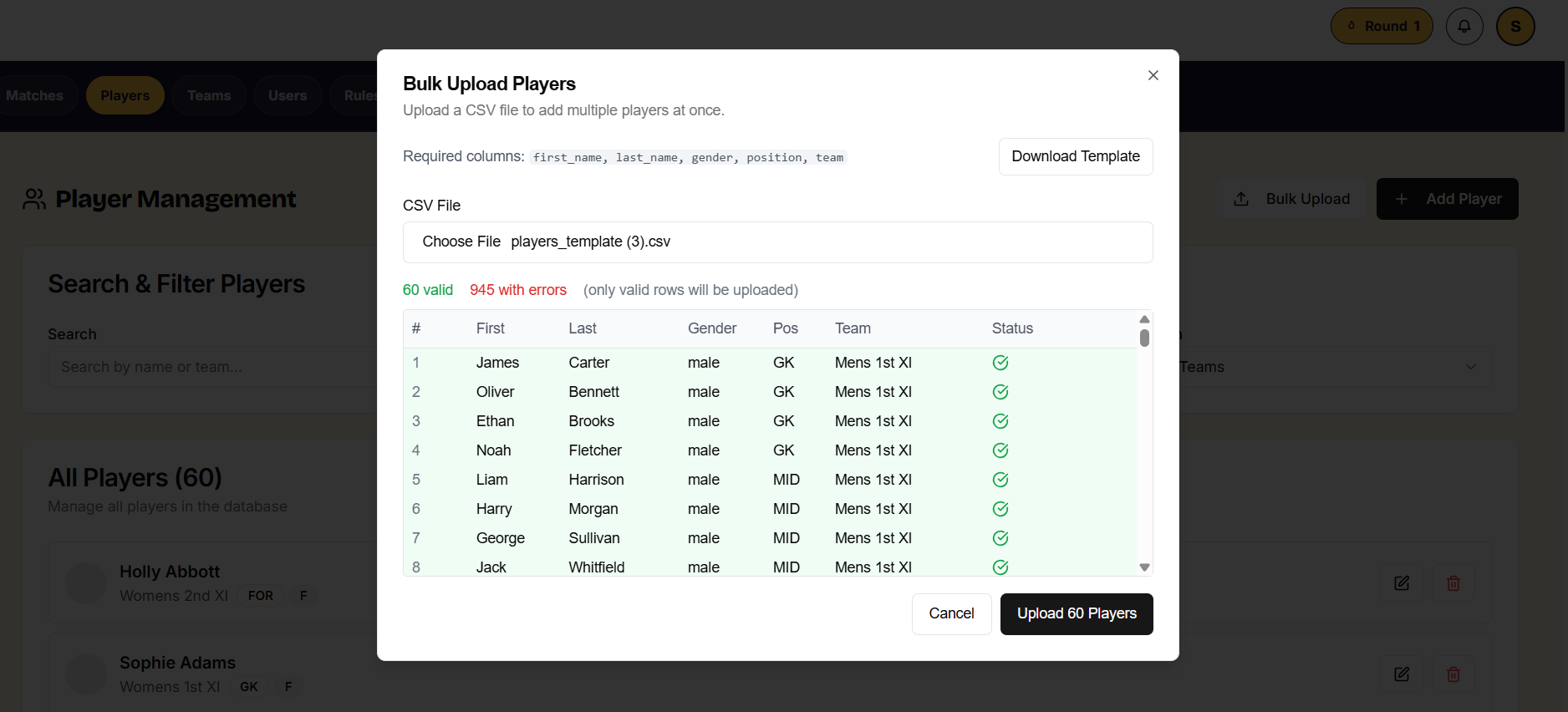
- Download the spreadsheet template from the bulk upload screen.
- Fill in one row per player: team, position (Goalkeeper, Defence, Mid or Forward), first name and last name.
- Team names in the spreadsheet must match your team names exactly.
- Choose your completed file and upload it.
- Check the result — if any rows have errors, the upload tells you which ones so you can fix and re-upload just those.
Once players are in, you can search for a player by name, or filter by position to see everyone playing a given position.
Invite users
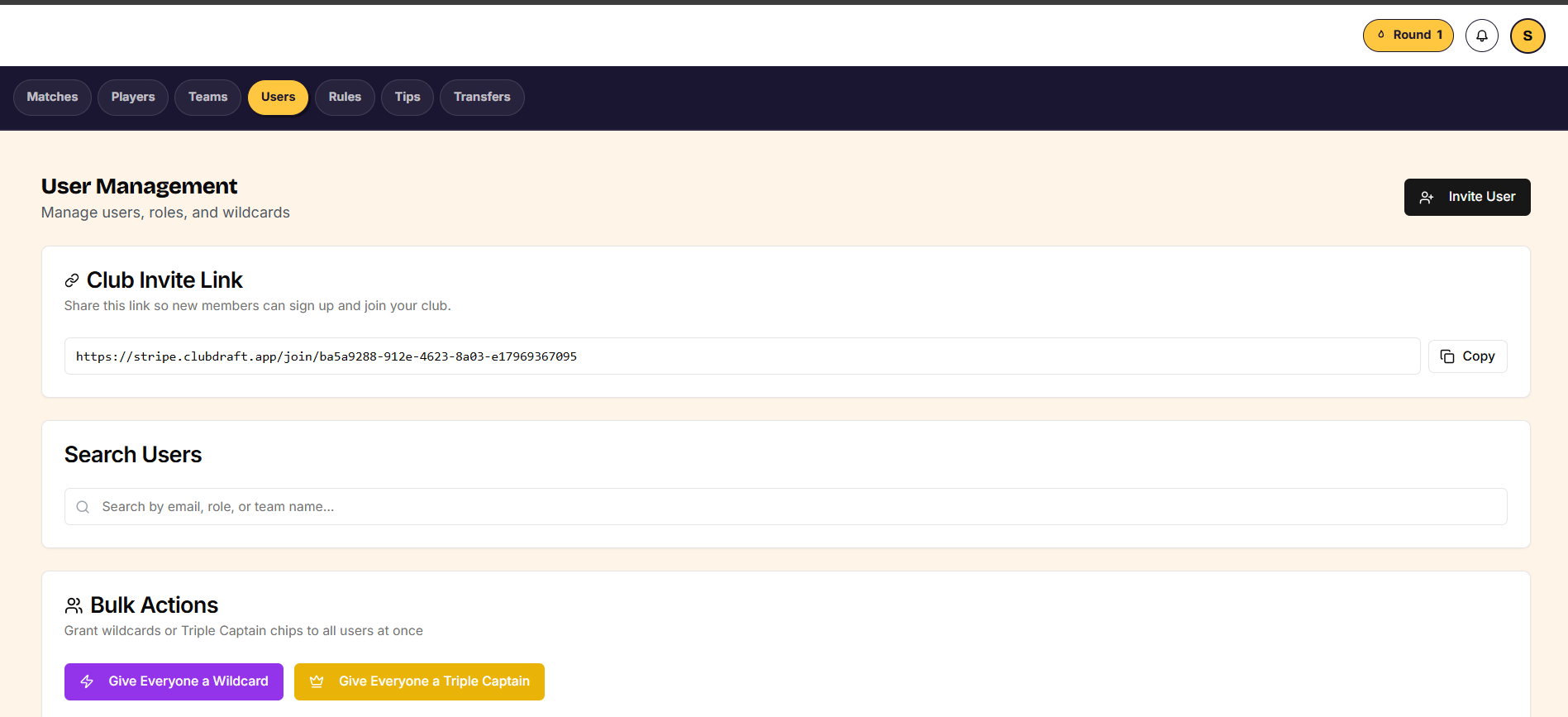
- Go to the Users tab and copy the invite link.
- Send the link to your players.
- When someone opens the link, they set a password and go straight into the app.
From the Users tab you can also:
- Give a user (or everyone) a wildcard or a triple captain
- Upgrade a user to admin, or downgrade an admin back to a regular user
- Remove a user
Set your scoring and team rules
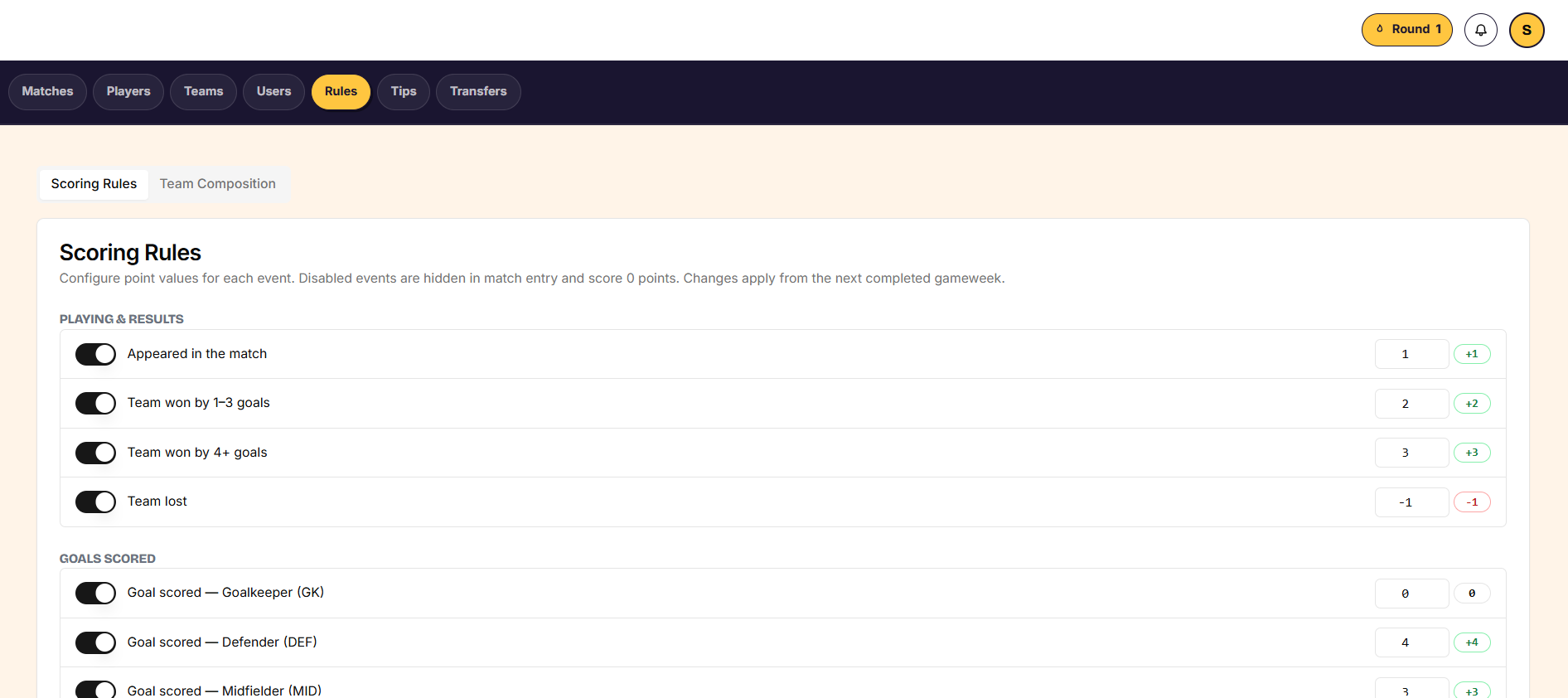
The Rules tab controls how points are scored and how fantasy teams are built. Sensible defaults are set for you, and you can change any of them.
Scoring:
Each match event — appearances, wins, goals, man of the match, cards, strokes and more — has a points value you can adjust. You can also turn team-result points (like a bonus for a win) on or off if you'd rather scoring be based on individual performance alone. Use Reset to Defaults to start over.
Team composition:
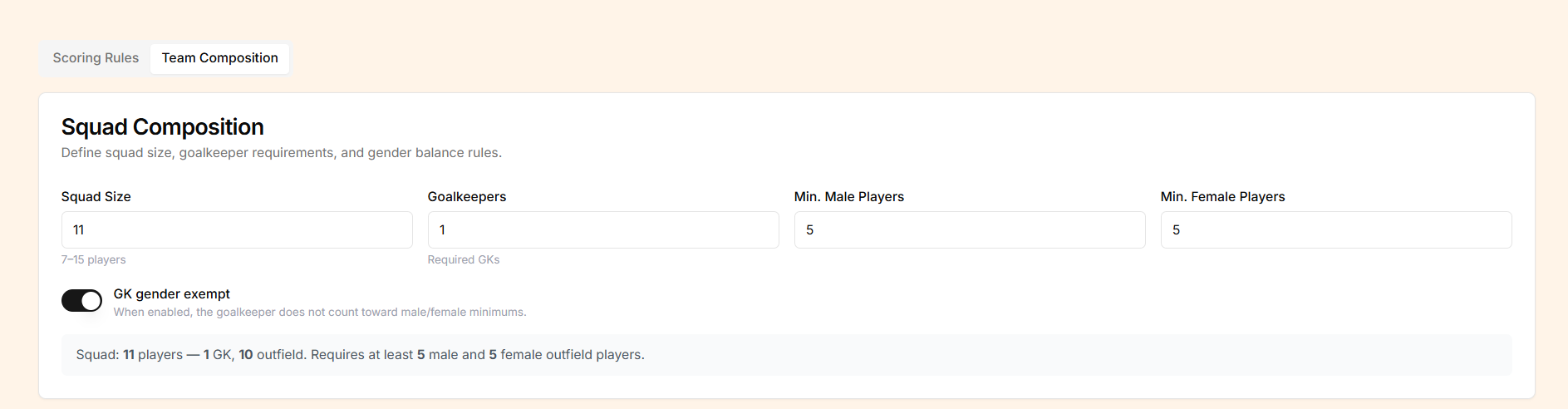
- Set the squad size (11-a-side, 7-a-side, or any number you choose).
- Set the minimum number of players required from each gender.
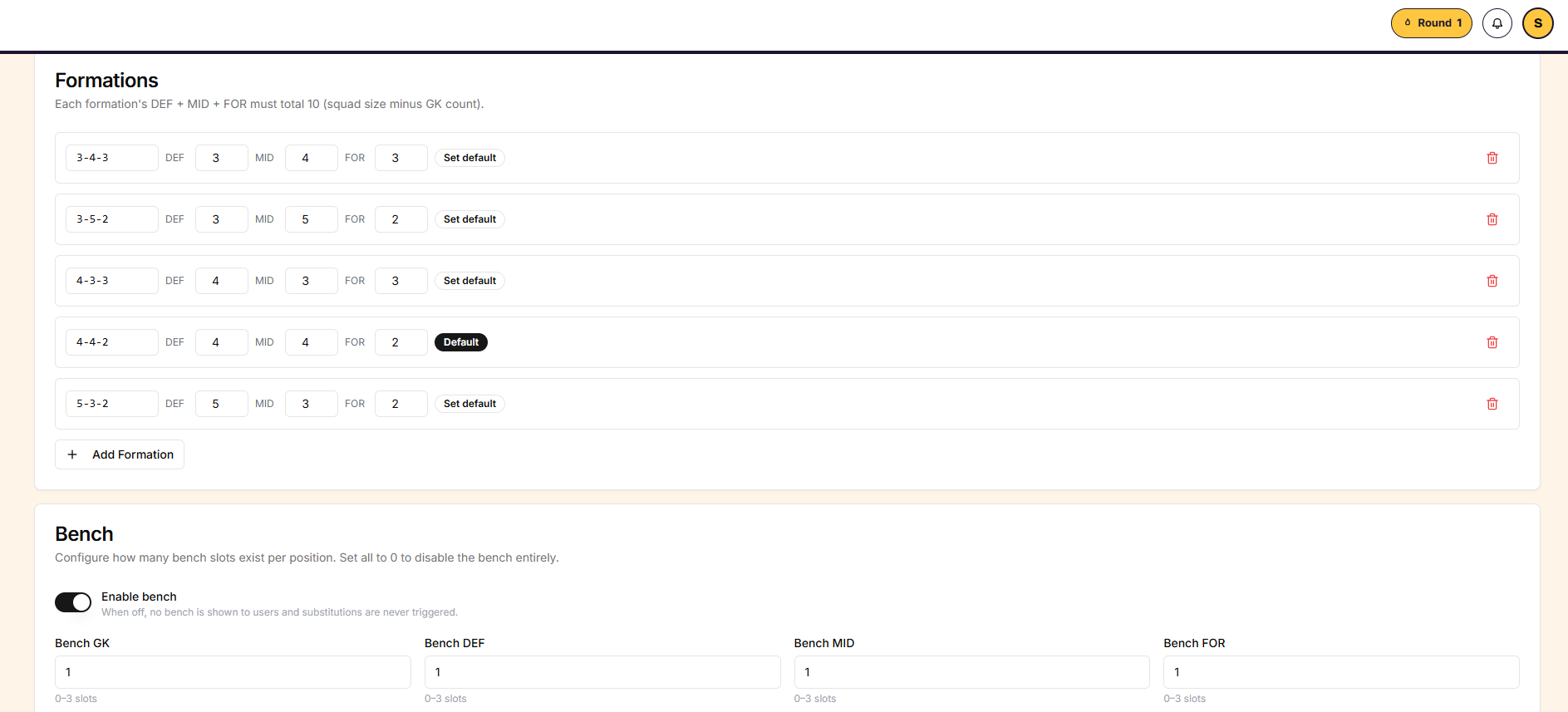
- Review the available formations, and add your own if you want to offer formations beyond the common ones already listed.
- Turn the bench on or off.
With the bench on, users pick bench players who are automatically substituted into the starting XI when a starter doesn't play. Four bench players tends to work well.
Post tips
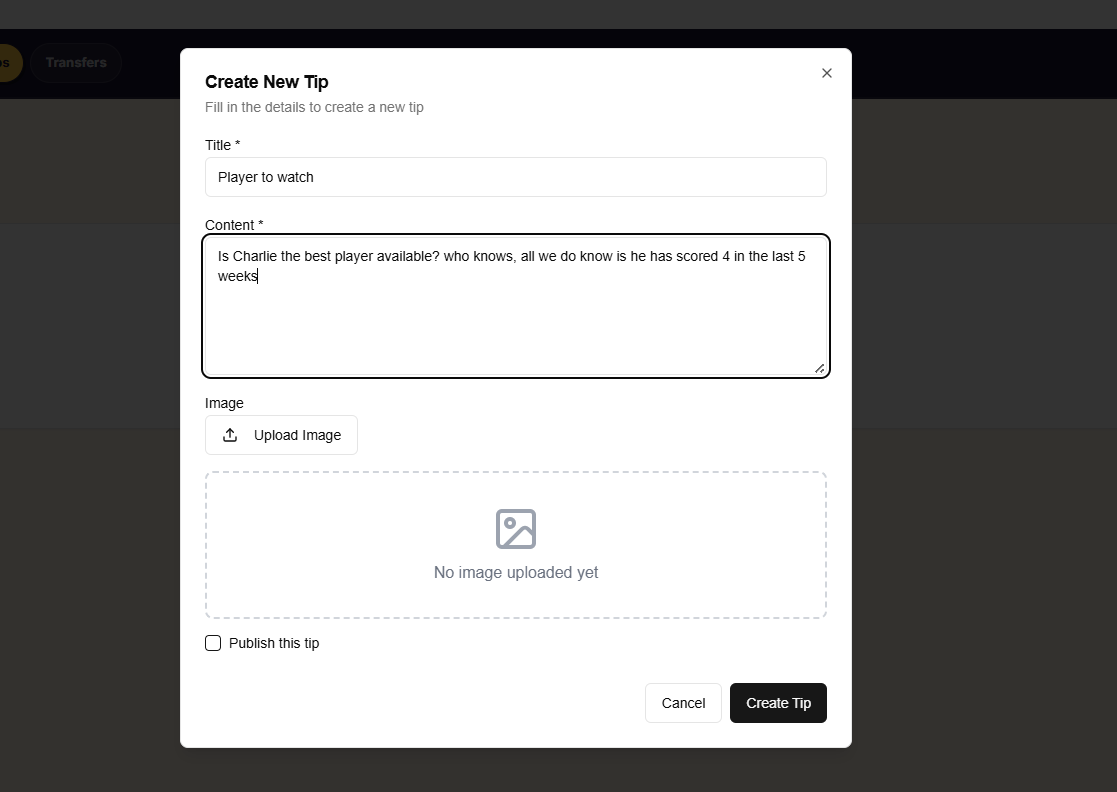
Tips appear on the home screen for all your users. Use them for announcements, awards, a player to watch, a fixture preview, or anything else worth highlighting.
- Go to the Tips tab.
- Add an image and your content.
- Publish the tip.
Things to know
- Admin access itself can only be granted by the master admin, not by another club admin.
- Team names entered in the bulk upload spreadsheet must exactly match the team names you've already created, or those rows will error.
- Changing team composition rules (squad size, gender minimums) after users have already built their fantasy teams can leave existing squads non-compliant, so set these before players start picking.