Understanding Auto Subs
How auto subs bring in a bench player automatically when someone in your lineup doesn't play, and where to see who was subbed.
Overview
If a player in your starting 11 doesn't play in a gameweek, ClubDraft automatically tries to bring in a bench player in their place, working through your bench in the order you've set.
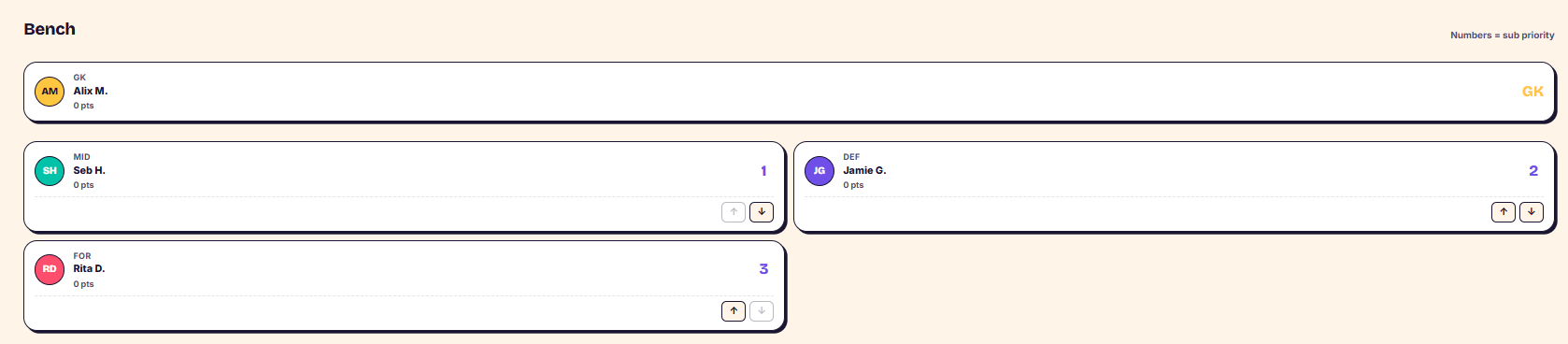
Set your bench order
- Go to your My Team page.
- In the subs section, you'll see your bench: a goalkeeper, and the rest split across defence and midfield depending on the male/female balance your admin has set.
- Use the arrows on each bench player to set the order you'd prefer them to come on.
How auto subs are chosen
- If a player in your lineup doesn't play, ClubDraft tries to bring in your first-choice sub.
- If that would break your team's rules — for example too many forwards, or an incorrect male/female balance — it moves to your second-choice sub.
- If that doesn't work either, it tries your third-choice sub.
- If none of your subs fit the rules, no auto sub is made for that player.
See which auto subs were made
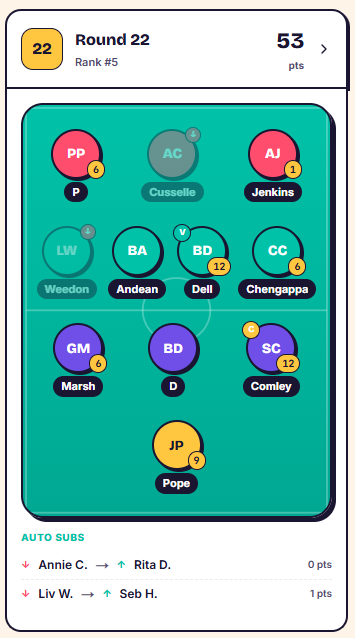
- Go to your History tab once the gameweek is complete.
- Players who were subbed out show greyed out with a red arrow.
- Scroll down to the auto subs section to see who came off, who came on, and the points each earned.
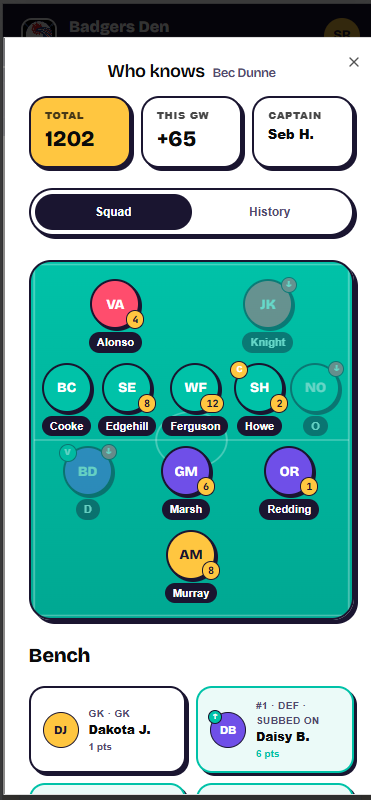
- To see auto subs for another team, go to Ranks and click their team name — subbed-out players show the same greyed-out red arrow, and the bench player who came on is highlighted in green.
Things to know
- Auto subs only bring in a replacement if doing so keeps your team within your league's rules (formation, and male/female balance).
- If no valid sub is available, your team simply plays a player short for that gameweek rather than breaking a rule.
Was this article helpful?