How to Create Your First Team
ClubDraft turns your local amateur team into a fantasy league — here's how to pick your first squad.
Overview
The first time you log in, you're taken straight to the squad builder to pick your team. Your club admin sets the rules your squad has to follow, so the app only lets you save a squad that's actually valid.

Before you start
- Your club admin sets the squad rules — squad size, minimum players per gender, and available formations. These are shown to you on the squad builder screen.
Build your squad
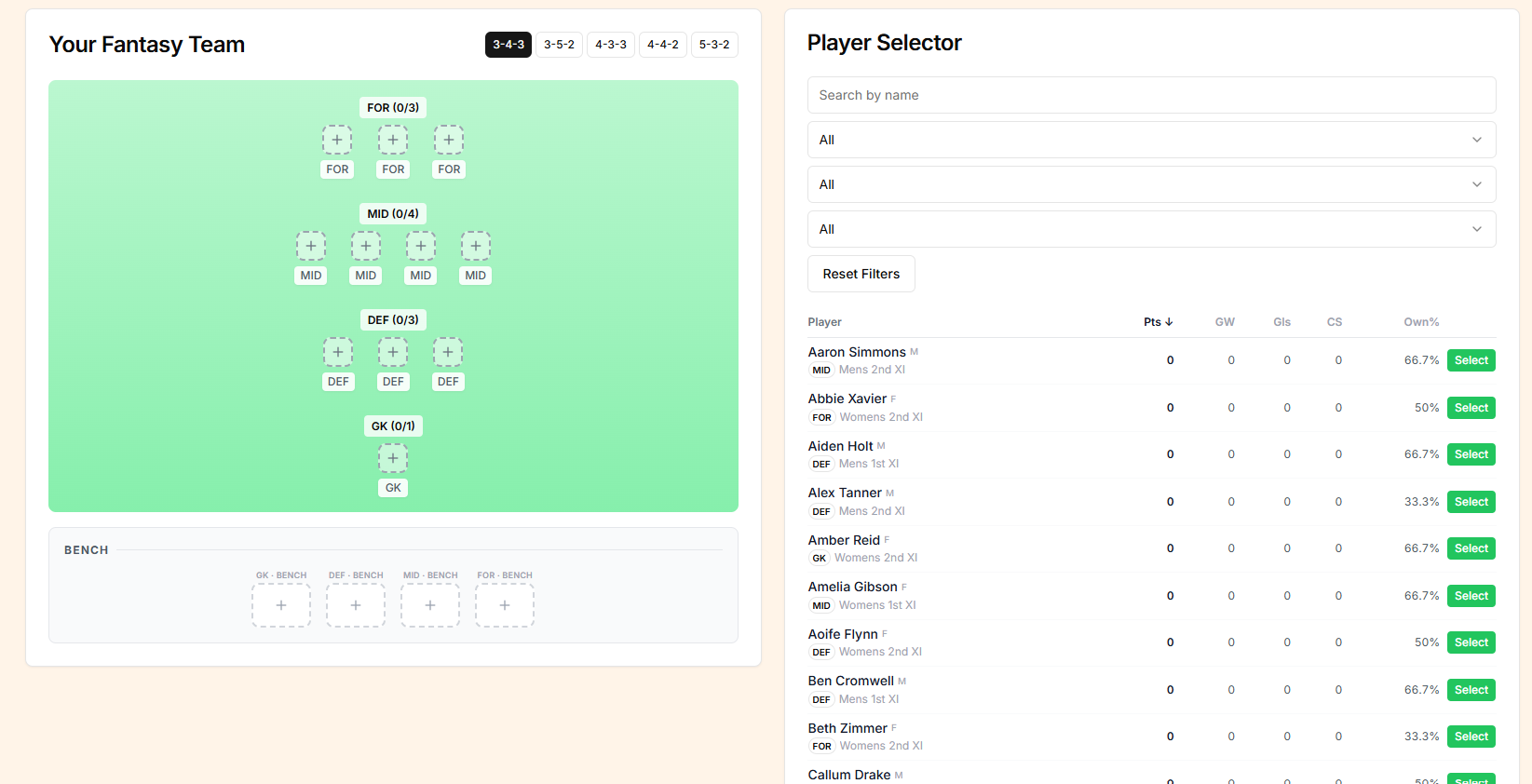
- Tap Get Started to open the squad builder.
- Tap Fill Empty Slots to see the players available for each position.
- Select a player to add them to your squad, position by position — goalkeeper, defenders, midfielders and forwards.
- If you change your mind, remove a player and pick someone else.
Add your bench
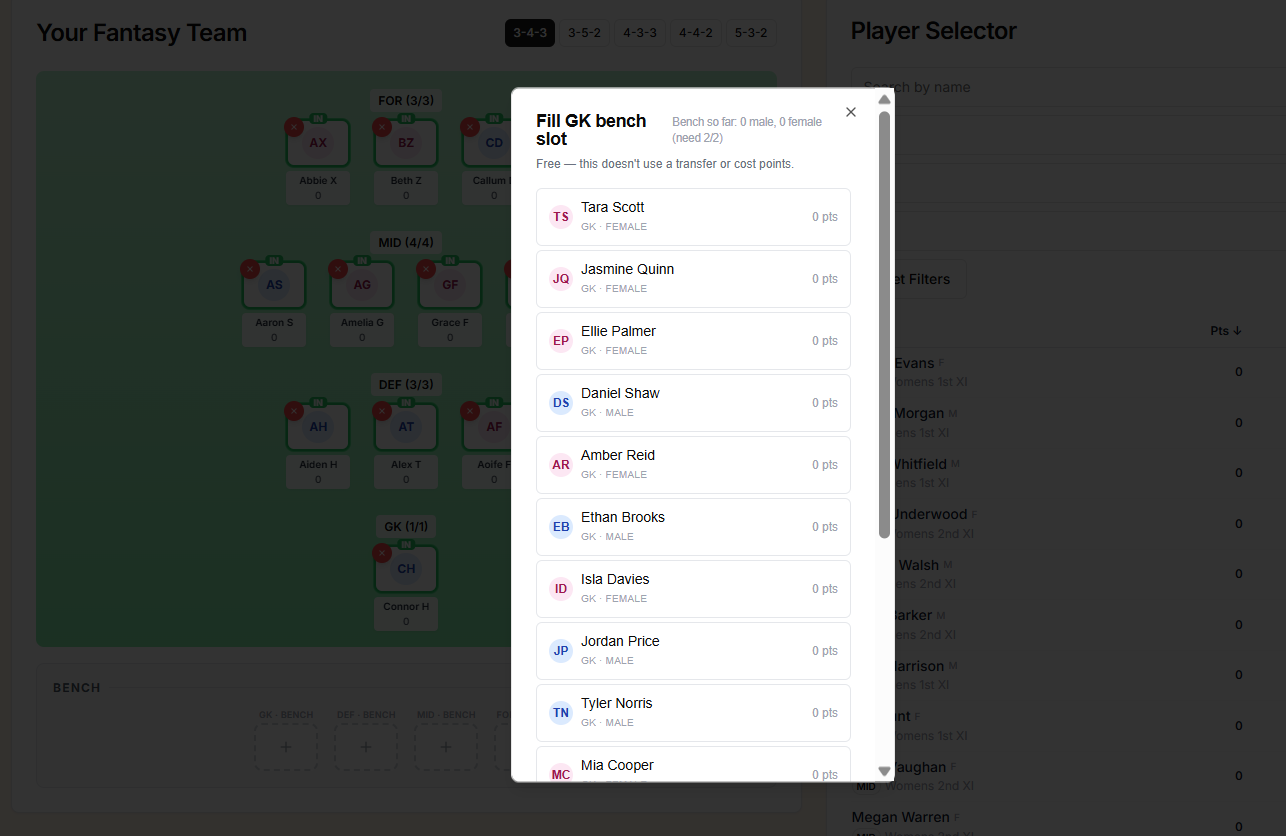
Once your starting positions are filled, add your bench players the same way — by filling the empty bench slots.
Follow the squad rules
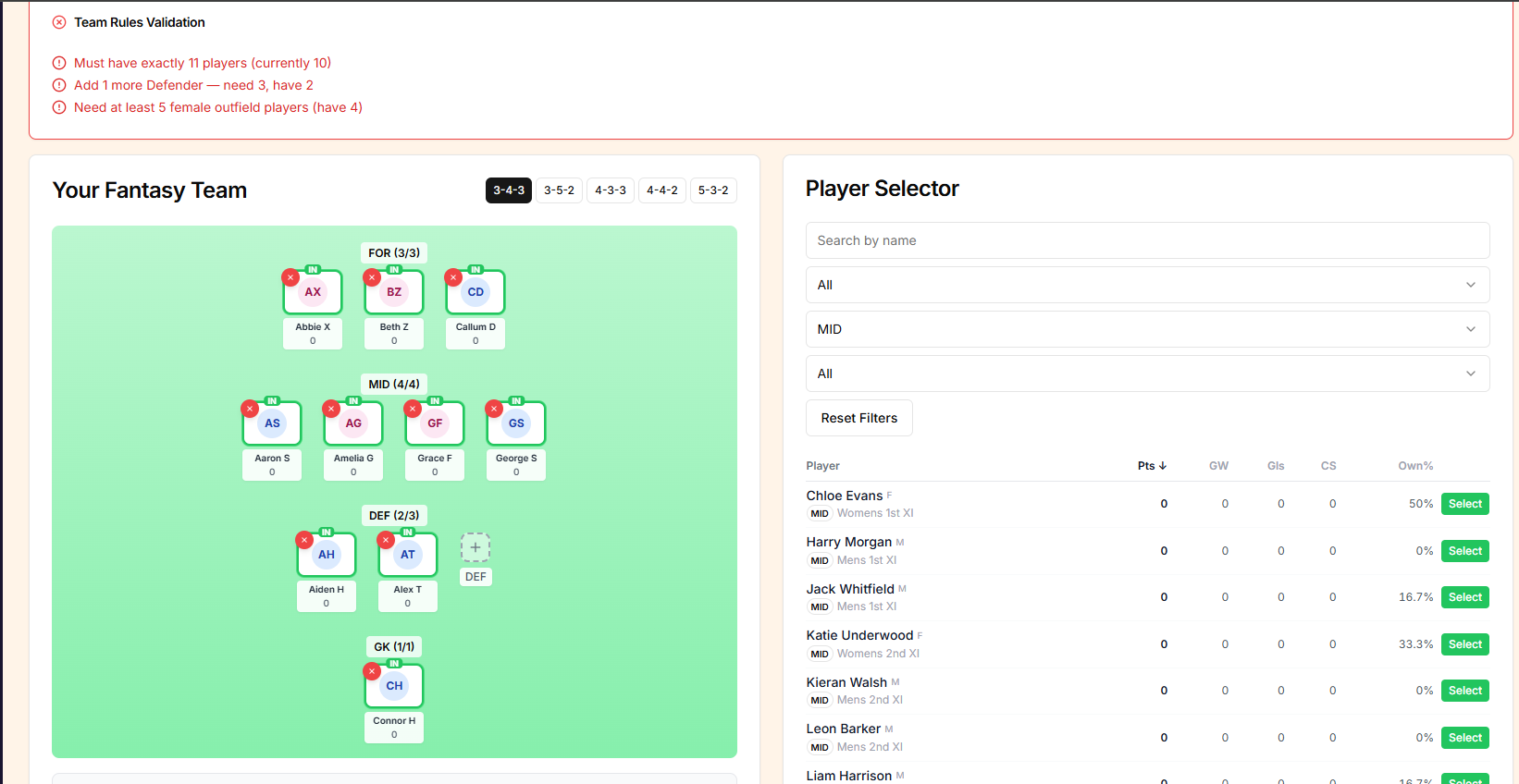
The app checks your squad against your club's rules as you build it — for example, a minimum number of female outfield players. If your squad doesn't meet a rule yet, it tells you what's missing so you can swap a player in to fix it.
Changing formation (for example from 3-4-3 to 3-5-2) changes how many players you need in each position, so you may need to adjust your squad to match.
Save your team
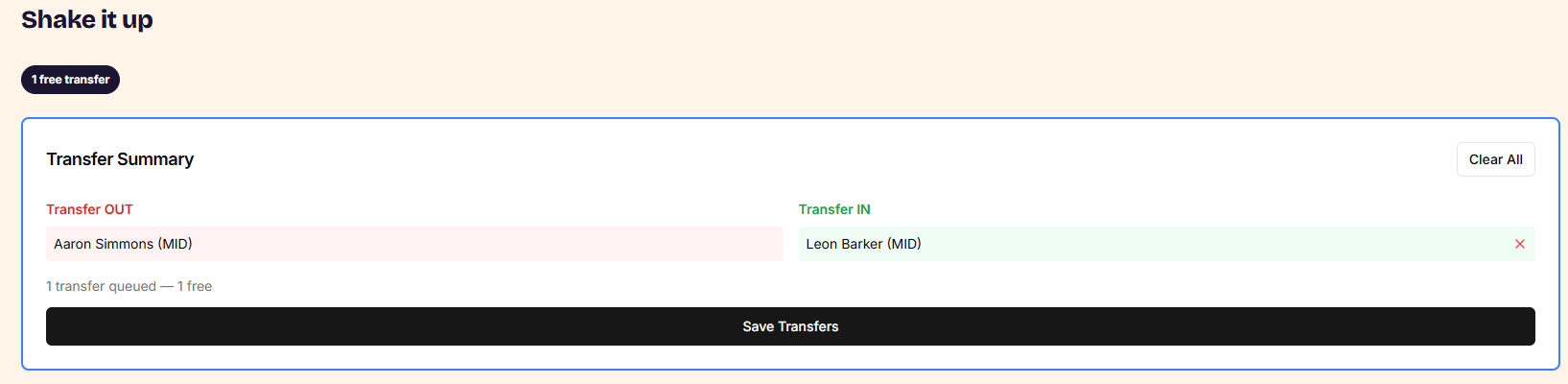
Once your squad meets all the rules, save it from the transfers screen.
Your initial squad selection doesn't use up a transfer. From the following week onwards, you get one free transfer per week. Unused free transfers carry over, up to a maximum of two. You also have a wildcard available, which lets you make unlimited changes without using your free transfers.
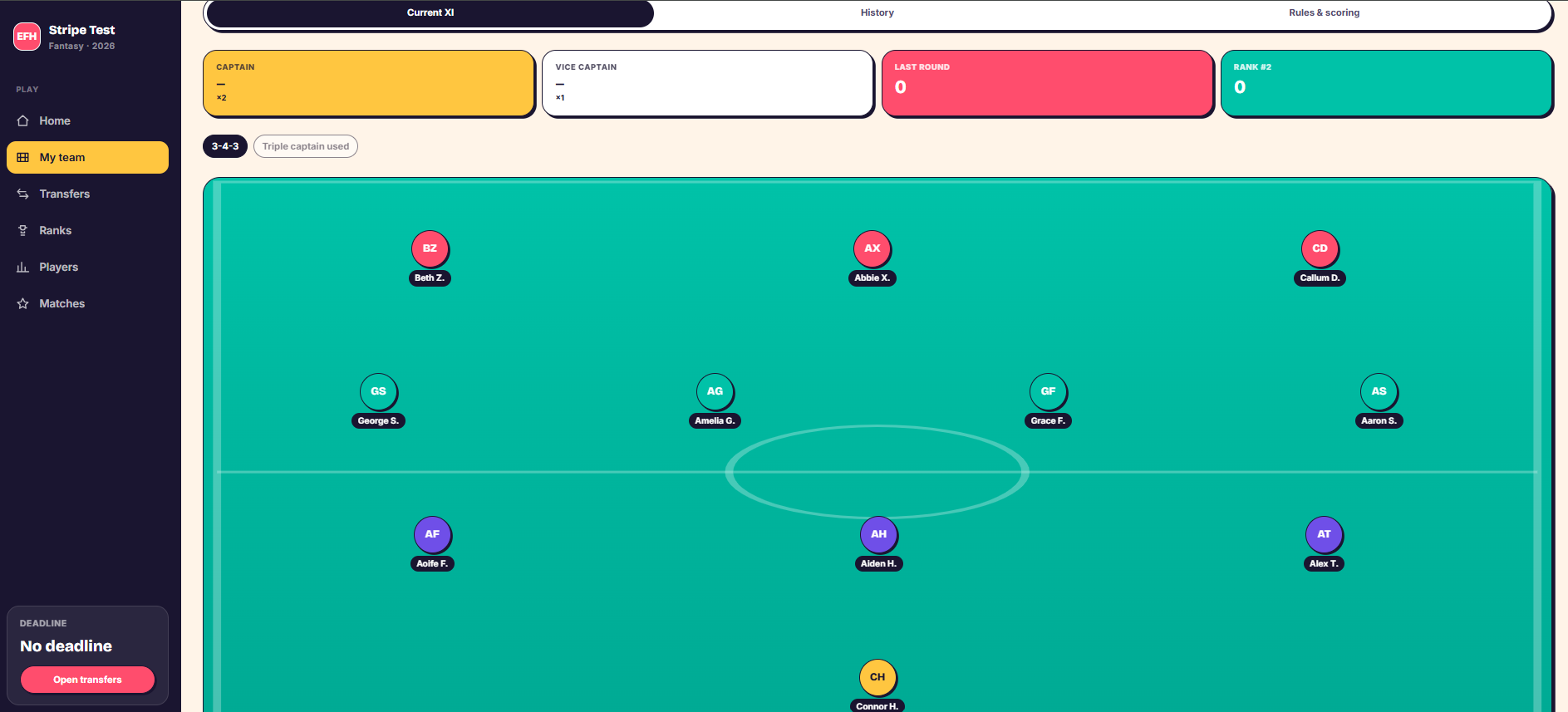
Set your starting eleven
Go to My Team to see your starting lineup and make changes.
- Choose a player to swap out.
- Choose who moves into their place.
You can only make swaps that keep your squad within your club's rules — for example, you can't move out a player if doing so would leave you short on a gender-balance requirement.
Set your bench order
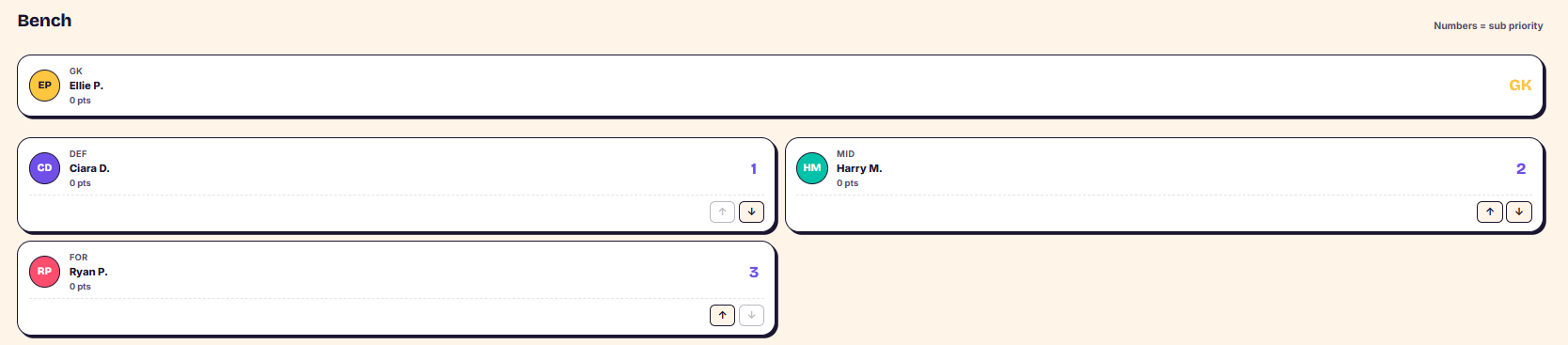
Put your bench players in order of preference. When a starting player doesn't play, the app automatically brings in the first eligible bench player in that order — if bringing in the next player would break one of your squad rules, it moves on and tries the next one instead.
Set your Captain and Vice-Captain
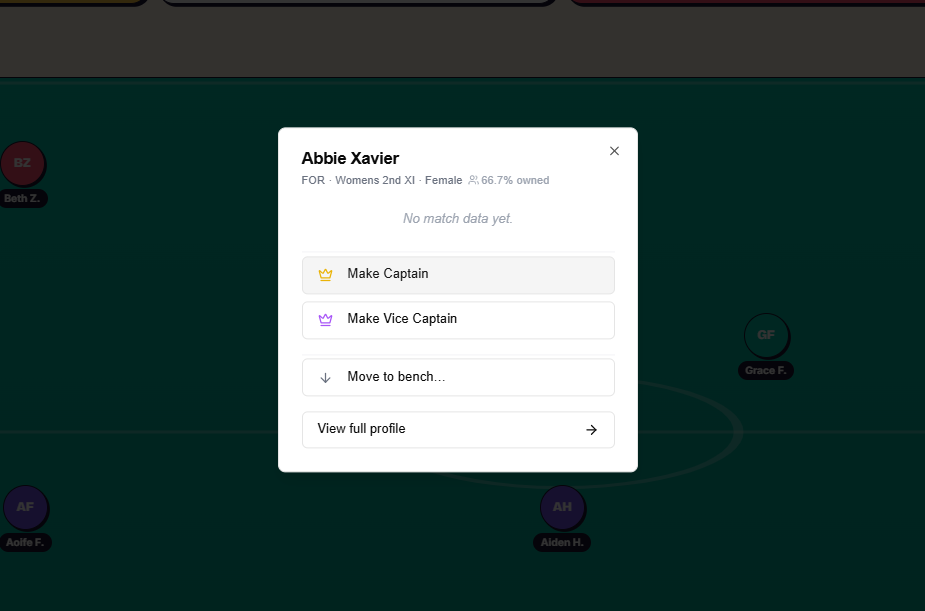
Your Captain scores double points. If your Captain doesn't play in a given match, your Vice-Captain gets double points instead.
Things to know
- Your first squad selection doesn't count as a transfer — the transfer count starts from the following week.
- Unused free transfers carry over, up to a maximum of two.
- Auto-subs only bring in a bench player if doing so keeps your squad within your club's rules, so a sub may be skipped in favour of the next one in your bench order.